
What have we here?
A range of free software that is useful in the radio
studio, production booth, theatre, sports-ground, or just at home managing a
music collection.
Solutions include: a jingle/sound-effects (DAC Cartwall) application, an audio/music library management and import utility for playout software (MyLibrary), a studio clock/status display (StudioScreen, USBLEDs) and even a free split-link recorder (SplitVT) that works with a variety of playout systems. You can use the software however you like: Home, Community, Commercial, Events etc without cost.
The software on this
website is offered free on the basis that, other than
a help file, there is no support.
If you find the software useful, that’s great and please continue to use it as much as you wish
- but if it breaks, you get to keep all the pieces.
Updating is simply a case of downloading and running the latest installer. Updates and bug-fixes will appear from time-to-time, plus, the help files will detail any changes I make, along with tips/tricks, walkthroughs etc. Do read the Release Notes within the online help before committing to an update.
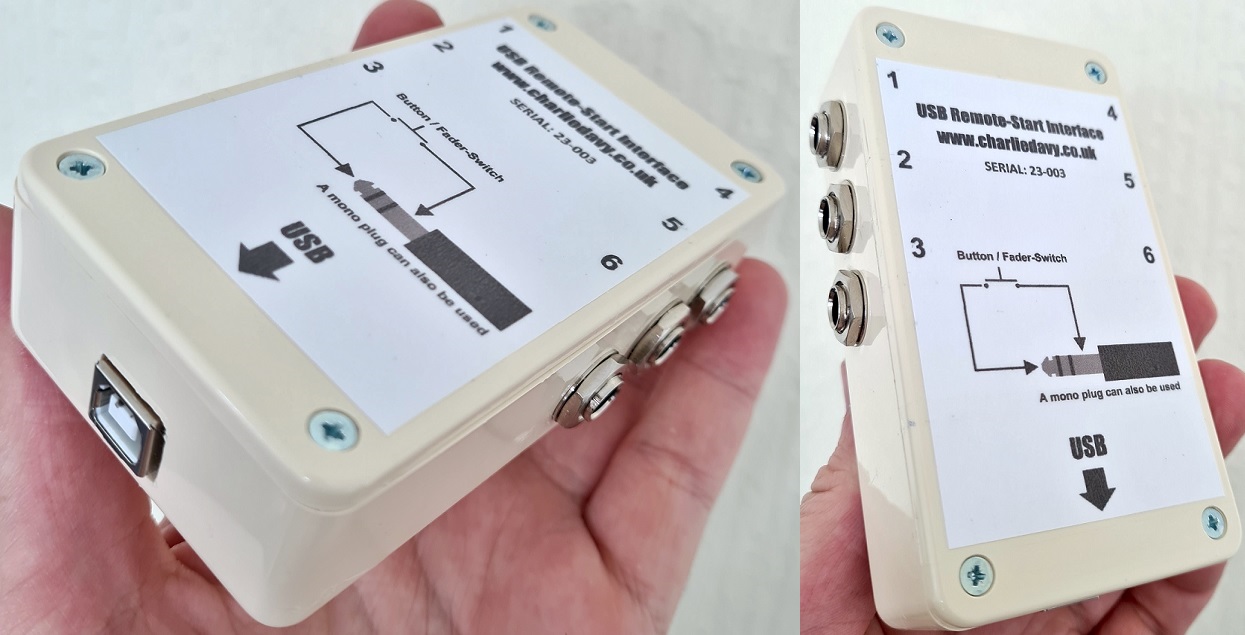
USB Joystick Interfaces - £50 inc UK postage
I have THREE
USB Remote-Start Joystick Interfaces available - These remainder units are "B-Stock"
as they have slight mis-alignment of the sockets (the drill slipped, or
something) but in otherwise perfect working condition aside from a few mm
difference in socket position.
The boxes appear as a plug 'n' play joystick device on your PC and offer 6 button inputs on a 6.35mm socket. They can used with my software like DAC Cartwall, StudioScreen, USBLEDs, as well as mAirList to start/stop players, control automation etc. Any Windows software that uses joystick buttons 1-6 will work.
Included is a 1m USB cable but you will need to add your own 6.35mm (mono or stereo) lead to match whatever button/mixer connections you have. If you have Behringer DX2000USB then you just need 5 mono/stereo "patch" leads. Other consoles, particularly "pro" broadcast ones may require soldering to 9/15-way D connectors.
Click here for a picture of the USB Interface
The units are designed to be hidden away and "just work", which they do just fine - I have 3 in my studio and they've been running almost non-stop for a decade.
It's likely that I'll be offering some 10-input versions, as well as an RS232/Serial version in due course...
To purchase, please send an e-mail to
this address:
AdLogGen
This is a simple application that lets you create/edit advert logs via drag
'n' drop - Just drop audio files into the main window, add Break Markers to separate each Ad-Break (even transmitter codes) - then export to the format of your choice.
AdLogGen is not a scheduling program, merely a playlist editor. It can create a daily template of "break markers" allowing you to drop audio items in via mouse-click. The duration of each "break" is shown at each "break marker" (black lines). It is especially useful for those who wish to manage AdLogs away from their (often expensive) traffic management software. You can import a simple M3U playlist and then export it to a more advanced format. Once you've got an AdLog created, you can save it with all of the details and easily open it again later for editing.
Download v1.32 Setup / View Online Help
ButtonPanel
A small-form jingle and sound-fx player for FLAC,
MP3 and WAV files - initially developed for a small-form Windows tablet, it can be used on a desktop machine, too.
The software offers 48 buttons that allows either single or multiple audio playback and is a quick 'n' easy way of playing DJ Jingles, Drops, Effects etc on the radio, in the theatre or even a live/sports event. Each "Set" offers up to 10 pages with the ability to colour-code your audio. This means that your "Breakfast" Set offers 480 items at your fingertips. The Set files are directly compatible with DAC Cartwall and uDAC allowing you to share pages with other systems/users. The window can be re-sized to suit your desktop/screen size.
DAC Cartwall
Imagine being able to instantly play a jingle,
sound effect, news-clip or music track at the touch of a button (or finger). DAC Cartwall is an easy-to-use jingle player that offers multiple pages of instant audio buttons ready for quick playback or loading into a dedicated player. It can read from a variety of tag formats allowing for easy integration with an existing automation system as well as being able to use its own Database, or can work with MyLibrary as an
"admin" tool.
Although DAC works best on a touchscreen, navigation can be accomplished via mouse as well as F1/F2/F3 to start/stop the playback decks. Remote-start via joystick, serial and IP (UDP) is also possible.
DAC offers lightning-fast navigation of jingle pages and instant audio playback: 56 buttons per page, 10 pages per "Set" and an unlimited number of Sets allow for near-instant audio load+playback of 1000s of jingles/clips/FX. Items can be loaded into 1 of 3 "Decks", either manually ready for playback or "Load n Go" mode allows for instant start of the audio in the next available Deck. A 4th "Instant" player lets you play additional items while the 3 Decks are in use/cued.
A "Set" for your Station IDs, Music Beds, plus each presenter can have their own – and all with a layout+colours to suit their tastes. It’s a great way to allow your presenters flexibility in playing their own content (perhaps from a USB stick or "cloud drive") without "upsetting" your existing playout system.
Download v4.53 Setup / View Online Help
DAC Cartwall Skin Files
These are a collection of MSStyles to tailor the window colour-scheme.
DACpad
An application to play in short-form audio clips such as jingles, sound effects and clips - It works great with a USB Numberpad and offers up to 9 hotkey buttons.
FLAC/MP3/WAV files are dragged from any Explorer window onto a button - just touch to play. Buttons can overlap and a global
Stop All button is also provided.
You can’t save any buttons, it’s just drag ‘n’ drop as needed – perfect for news clips, podcasts or anywhere else you may wish to play-in some audio. v1.3 introduces the possibility to drop .bat (batch) files onto a button in order to control/trigger external applications. This can be a process, script, chain of events (eg: cleanup audio folder) – whatever you’re capable of programming.
EZCart
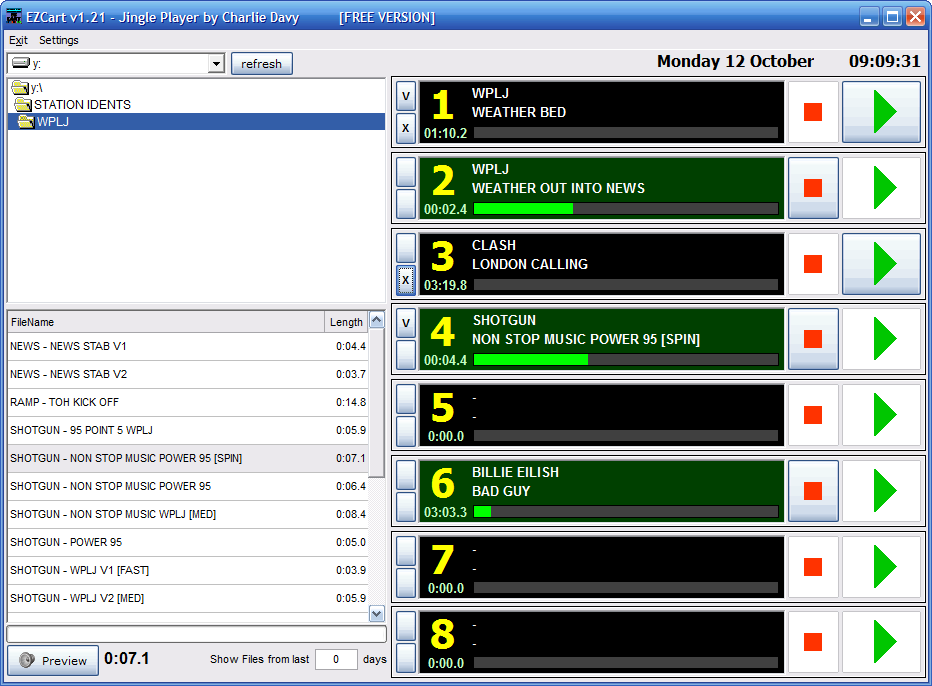
EZCart is a jingle player that allows you to drag
and drop FLAC, MP3 and WAV audio files into 8 playback "cart" slots. It offers
simple start/stop via the mouse, keyboard or can be used with a touch-screen.
The main window can be resized to suit your display and each "cart slot" can
output to a unique sound device.
Simply navigate to a folder using the built-in browser, drag 'n' drop the audio to a slot and click the "Play" button. Keys F1-F8 also Start/Stop the slots. The slots will attempt to read CartChunk, ID3v2 or basic filename Artist - Title information when loading. You can also drag 'n' drop audio from any File Explorer window into a slot.
Slots can sequence by clicking the button to the left of each slot - when the preceding slot finishes, the next one is started. A V symbol denotes the sequence mode is active. Slots can also be ejected (or not) after playback - Clicking the lower left-hand slot button toggles this mode: X means eject. To manually eject a slot, you can right-click the Play button with your mouse.
Download v1.22 Setup (updated 4th September)
MyLibrary
MyLibrary is an audio file tagger and library database application which can help you manage your audio files.
You can easily import from a folder, drag'n'drop files or load a CSV/M3U/Tab
file as well as "slipstream" additional data (like album or publisher info) from
a spreadsheet.
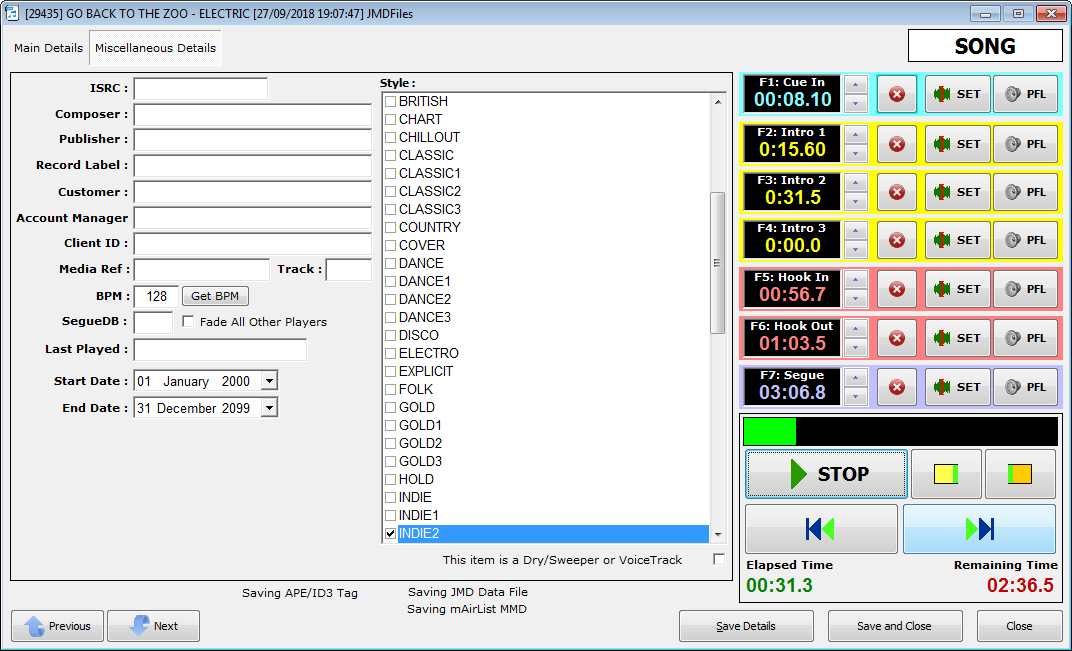
Special "broadcast" parameters like CueIn/Intro/Hook/Segue times, EndType, Opener and Category can be edited ready for importing into a scheduler or playout system.
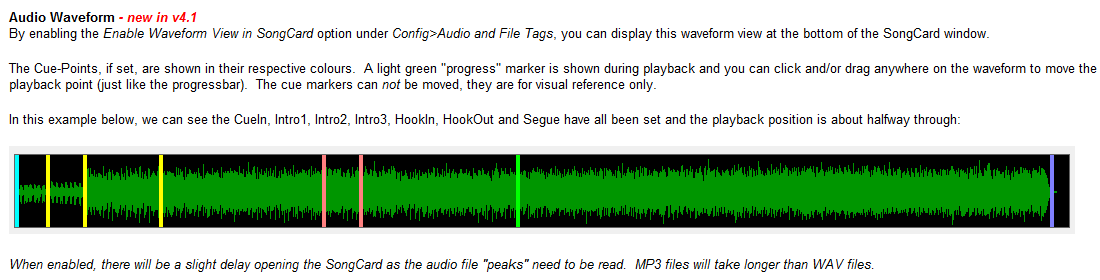
Screenshot (main screen) / Screenshot (songcard 1) / Screenshot (songcard 2) / Screenshot (audio waveform)
It's probably better to ask "What can’t MyLibrary do?" – It does a fair amount, that’s for sure. In short, if you want to manage your audio library and/or export to various playout systems/schedulers whilst keeping Cart/CutIDs identical then MyLibrary is probably the tool you need. It supports popular tag formats such as APE, ID3v1+2, plus the broadcast-industry Cart Chunk format as well as FLAC, MP2, MP3, OGG, WAV (PCM) file formats.
Download v4.11 Setup / View Online Help (updated 25th September)
Tag Test Files
Collection of sample MP3 and WAV files with APE/ID3 MP3 tags plus Dalet XML, AudioVault, EncoDAD, Genesys, Myriad, RCS and WideOrbit WAVs with Cart Chunk. Also, 2 PlayoutOne test files with custom ID3v2 tag. Try these on your automation system to test compatibility.
Sample JMD Files
These can be matched-up with your own audio files to see how the data works. MyLibrary filenames are *not* case-sensitive.
RadioLookup
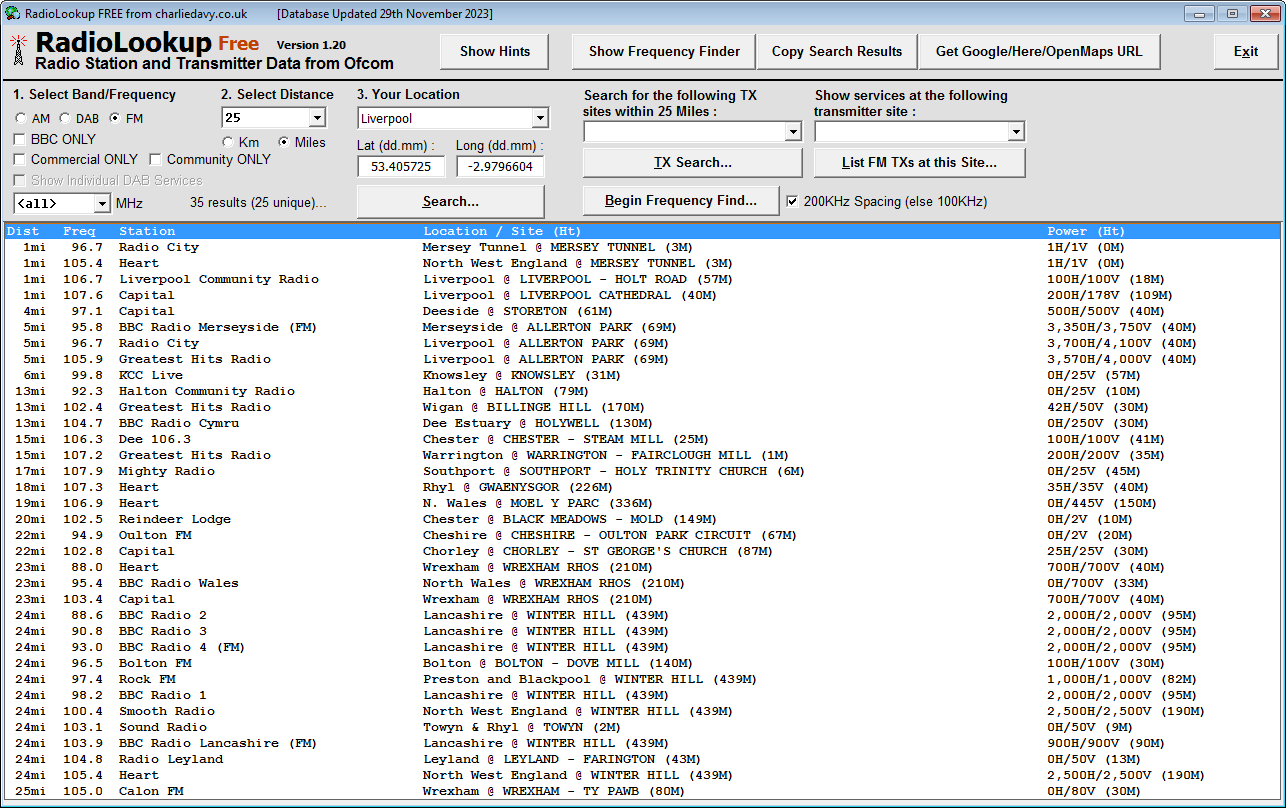
Making use of Ofcom's radio-transmitter resource known as
Technical Parameters (aka: TXParams),
this application displays AM, DAB and FM transmitter data via simple search
criteria. Ofcom's CSV/XLS files are designed to be used with some
kind of "tool" like this, so that results can be displayed in a pretty way other
than a spreadsheet.
Uses include: Identify a potential frequency for a new service (like a Community Radio Station) or simply to find out what stations are nearby, search by DAB "Block", what services you can get from a nearby DAB multiplex or which Multiplexes carry "Radio Caroline"? Options allow you to filter for nearby BBC, Commercial or Community stations "only". You can also find a specific service within a set distance, eg: Find all transmitters for "Heart" within 50 miles of Bristol and so on.
A map URL from Google, Here or OpenStreetMap can be "grabbed" from the clipboard for easy entering of Lat/Lon values.
This program is normally updated a few days after Ofcom publish their latest TXParams data.
Please note that errors/typos within TXParams are (normally, unless I spot them) also reproduced in the software!
SplitVT
Networking - there's no escaping it. A radio show may be broadcast live to several different geographical areas each carrying their own local commercials – But what about content such as news, travel
or weather updates that need to air on a specific transmitter? SplitVT will record audio for up to 24 splits and can be used with any playout system that auto-imports from a folder periodically or can play a specific file via a command/playlist-item, eg: mAirList, Myriad, PlayoutONE.
A series of presets allow for the quick recording of regular elements such as local news/weather plus presenter links that are custom to that "split" area. Output filenames can be Artist/Title and/or Cart based - a simple %token% system allows you to define the formatting. Basic editing functions like top+tail, normalize etc are offered - it's just a simple recorder with basic editing features, not Adobe/Audacity!
Download Setup v1.33 / View Online Help
StudioScreen
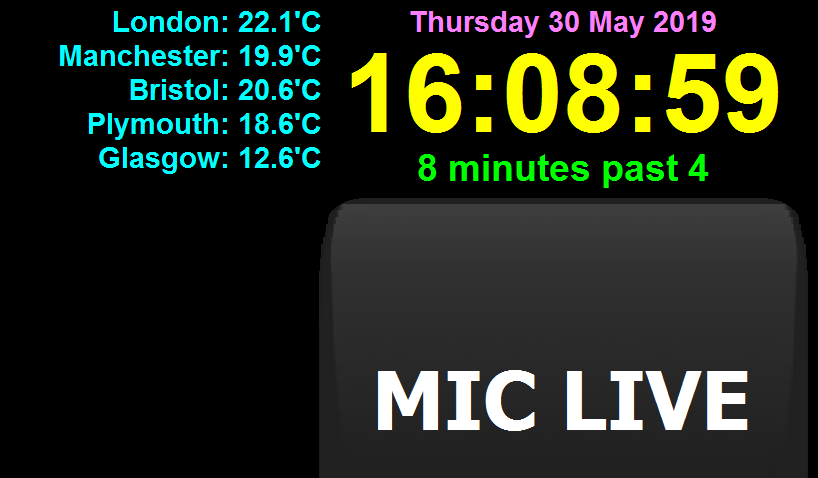
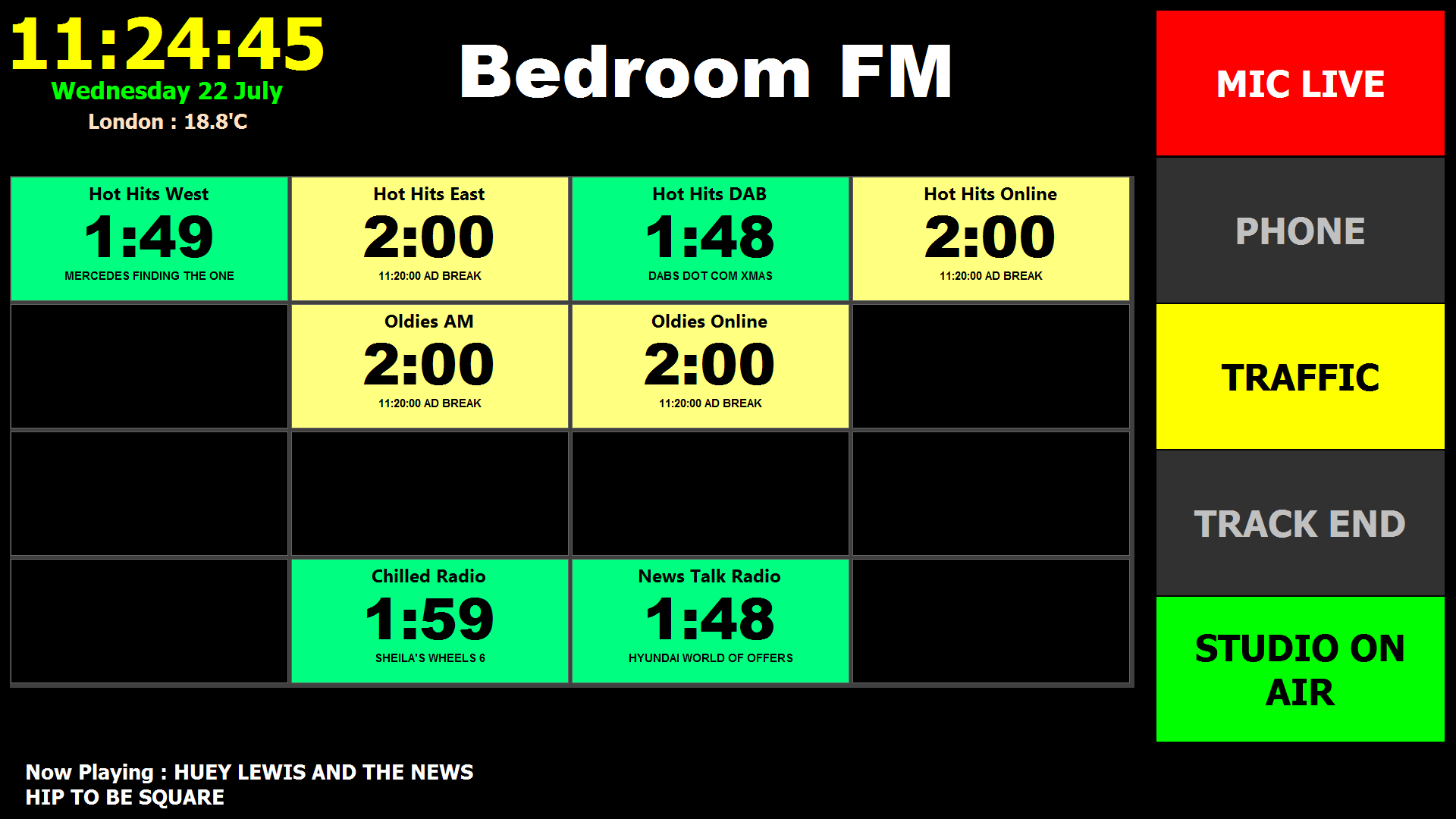
StudioScreen is a display application for showing time, on-air status and other information in a radio studio. As well as the clock+date displays, the current song from your playout system can be shown along with status indicators for Mic Live, Phone, XD/Phone2 and a Door/Alarm alert.
Screenshot (main view) / Screenshot (weather close-up)
You get 2x stereo VU meters, 4 main indicator LEDs (with 4 smaller ones enabled via config file) plus Now Playing display and a clock/date. RS232+UDP control, RSS news "headlines" and up to 5 weather temperature displays can also be enabled.
New Clock design from v1.73. Since v1.72, the weather locations are set using Lat/Lon
Download v1.73 Setup / View Online Help
SureLog
SureLog is a broadcast logging application designed to record hourly audio files in either MP3 or linear PCM (WAV) format.
In automatic mode, it creates a new file at the start of each hour and names them according to the current date/time.
A contact-closure (joystick) or UDP command may also start/stop/append recording
for a "mic live" logger.
It can begin recording upon startup, features a VU meter, file housekeeping as well as a dead-air logger.
Keeping a log of your station's output is a good idea - Especially as it may be part of your licence conditions. All OFCOM-licensed stations in the UK are required to keep an audio log for 42 days. OFCOM take a dim view when stations fail to supply them (regardless of the excuses) (see notes) - Why risk a fine or licence breach? All you need for compliance is an off-air receiver feeding the logging computer - it should (ideally) do nothing else except this task - and be periodically checked by staff (perhaps as a "per show" checklist).
Download Setup v1.62 / View Online Help
Note
1:
Ofcom Note to broadcasters - Retention and production of recordings
Note
2:
Failure to produce "as broadcast" audio
Note
3:
Refusing to provide audio
Note
4:
Not
keeping audio for full 42 days
Note 5:
Not
providing audio
Note 6:
Not providing correct audio
uCart
uCart mimics a traditional NAB cart machine but without the wow/flutter and re-cue time. Loading a slot can be done by dragging a file from Windows' Explorer or the built-in File Browser. Slots can be ejected after playback if desired. Sequencing of slots is also possible - Enabling you to run an ad-break of up to 6 carts in sequence with just 1 click.
Remote-start via joystick along with F-keys also supported. A File Browser with 8 preset "Cart Racks" allows you to easily move between your favourite folders of audio/jingles. When loading WAV files, the CartChunk information is read (Artist/Title, CutID, Outcue, Start+End Date, Category) and MP3 files have their ID3v2 tags (Artist/Title, Year, Genre) read. The duration of the file is also shown.
USBLEDs
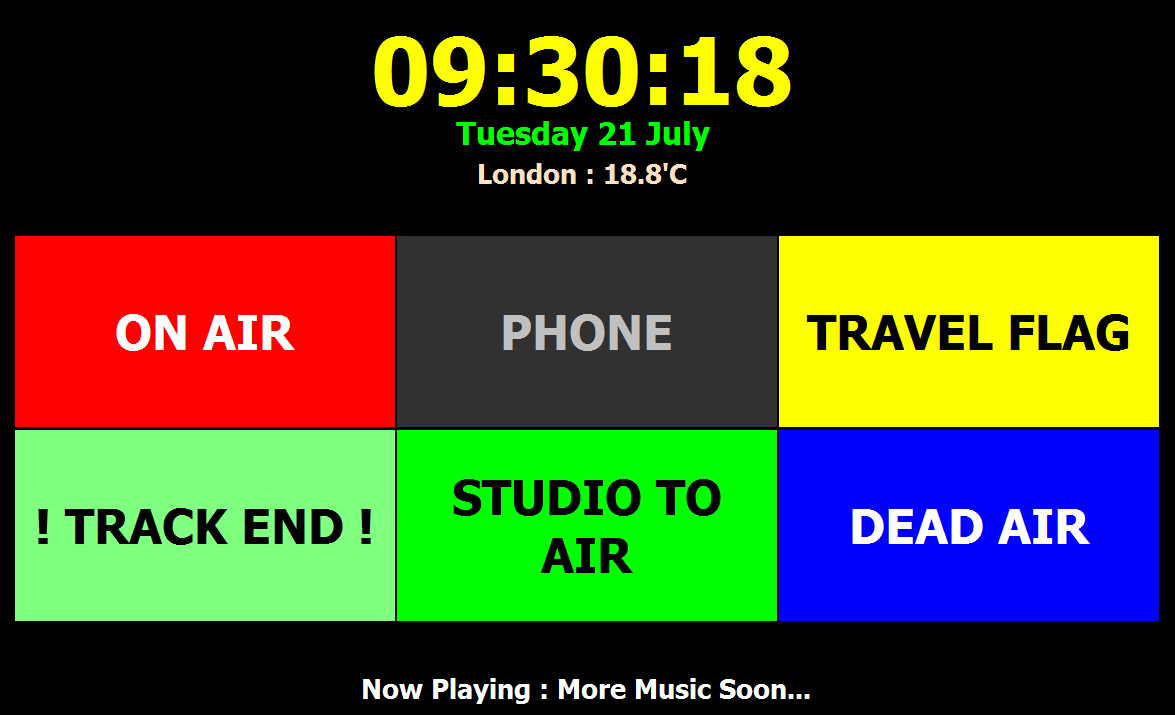
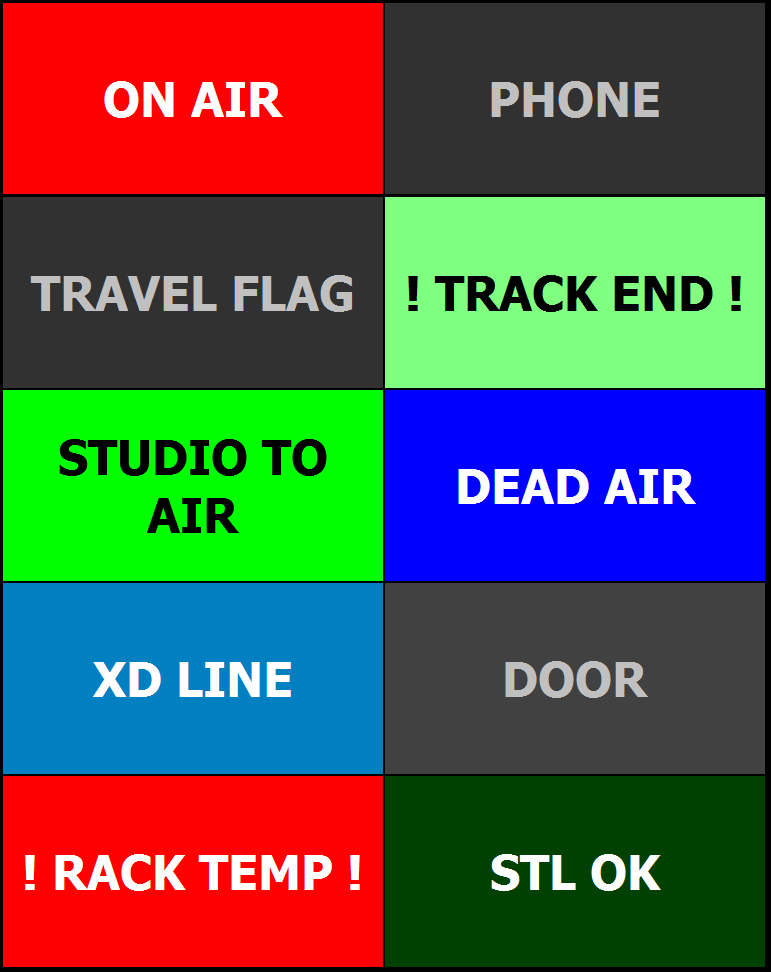
Here's a FREE GPIO application for your studio - it
reacts to joystick,
RS232 or UDP to control up to 10 status LEDs as well as a basic clock, "now playing" text file display
plus weather temperature. You can enable the elements as required and simply drag them around the screen to create your layout.
The LEDs each have an "on" and "off" colour+label. The text can be as simple as
"ON AIR", "PHONE" etc but can also display the contents of a (short) file,
perhaps a temperature file from a remote sensor in a rack/transmitter. The
layout can be 1 LED, 3-wide, 5-down and so on.
Screenshot (sample layout 1) / Screenshot (sample layout 2 with 3rd-party monitor app) / Screenshot (LEDs)
A basic "readme" file is included.
Using a similar look to my StudioScreen product, USBLEDs gives you some flexibility with regards to layout and feature-set. It is ideal for using alongside other applications where you have some spare screen real-estate and perhaps need to display another bit of software in the spare room available. It works best if you set your Windows desktop background to a solid black colour.
From v1.17, a single weather temperature display is now possible underneath the clock/date. See the readme.txt for details of how to use it. The next update will have a station name label, "webcam" image object and a few other fixes.