Updated
29th June 2008
Here's a variety of (nowhere near complete) technical
stuff which may be of use... Any blue portions of text are links to
external sites (usually the official home page of that particular
product).
BCX3
by Barrcode
BCX3 is the latest release from Barrcode.
Originally known as BCX2 and used by various radio stations (such as Capital
FM, Essex FM, Invicta FM) this software has evolved to include MP3 support,
enhanced voicetracking, updated playlist and IP network commands. BCX3
can read playlists compiled via a range of popular music schedulers.
There is now a "DJ" version of BCX3, aptly named BCX-DJ -
click here for the
website.
|
I have
used
StationPlaylist to create playlists for BCX using the following
output formation in SPL: %10h%25c%85a%85t%8s%160u This creates
a fixed-field playlist with the following fields:
- Scheduled Time - 10 characters
- Category - 25 characters
- Artist - 85 characters
- Title - 85 characters
- Duration - 8 characters
- Filename - 160 characters
BCX Segue/Voicetrack Editor
 |
BCX3 in split-screen
mode
Playlist on the left, button box on the right
 |
It is important that your StationPlaylist
categories start with MU - So MU DISCO would be an example of a Disco group
of songs. BCX3 allows playlist triggers to determine what type of
audio appears on each playlist line... This could be Music, Jingles, Adverts
or Liner/Text Notes. Jingles should have ID preceding any Spot Group
name and Adverts should have the letters AD. This is how I have
arranged my configuration, but you are free to choose your own BCX triggers
(although these seem like the most obivous ones!). If you're not
really fussed about having Music, Jingles, Adverts and Liner Notes appear in
differing colours - Simply select :\ at the start of the filepath and set
that as a "Music Trigger" - all audio will then be coloured as "Music".
...and here's how you tell BCX how to read those
playlists:
click the images for a
bigger version
 |
In BCX,
hit Ctrl-C to open the config screen and navigate to the playlist
tab. Click "Load Test Playlist/Adlog" and find one of your generated
playlists.
You should see something similar to the
screen on the left, but with 1 playlist item per line. Select the
word SONG and click STORE under the word Trigger. This tells BCX that
this line contains a SONG... Simple, eh? |
 |
Next,
highlight the Arist/Group text and select STORE (under Artist). |
 |
Next,
highlight the Title of the song and click STORE (under Title). |
 |
Same again
for Duration - I hope you're getting the hang of this now! |
 |
...and
lastly, the filename.
If you need more space for the
filename, you can change this value in the playlist string:
If you've followed these instructions
correctly, you should now be able to Save the config screen, click
Playlist twice, and open up today's playlist... |
Here's how StationPlaylist
Creator's configuration screen looks with this arrangement:

BCX now handles voice-tracks and
level-ducking of music - You simply double-click the song you wish to
voice-track into on the playlist. If you are scheduling playlists, you can
either schedule "break notes" to indicate where your presenters should
record VTs, or just let them insert VTs as they see fit. The voice-track
filenames actually relate to the playlist filename, so scheduling
voice-tracks from your scheduler is not technically supported. You'd have
to save the playlist as a .pltxt file and manually alter each
voice-track to PlType=13 in the playlist file.
The .bcx info files reside in the same folder
as the actual audio file. This can be a pain if you have a single
folder of all your songs and then another folder (with sub-folders) of your
playlist songs. In order to copy only the relevant .bcx files to each
sub-folder - Use XCOPY via the START-RUN CMD MS-DOS screen...
Simply use the following command: xcopy *.bcx
c:\playlist\current /u Use this for each destination folder and only
the existing .bcx files will be copied. You MUST first load the folder
in Button Box/Detail Dir so that the basic "blank" .bcx files are created -
Then you can XCopy your proper ones with all the timing info etc.
CDAR - Charlie's Digital Audio
Replacement
This is an on-going project to create a
radio playout package.
CDAR features will
include:
- Live-Assist and Automated playout
- Advanced Cartwall
- Playlist Segue Editor
- Voicetracking and level-ducking
- Audio Library Categories (Advert,
Jingle, Music etc)
- Impor/Export M3U playlists (from
StationPlaylist Creator)
- FLAC, MP3, WAV, WMA audio playback
and record
- Stream Relay - take network feeds
via AAC, SHOUTcast or WMA
- Recorder for simple off-air
voicetracking
DAC Cartwall - yes, it
looks like VCS
 |
...more to follow
DARP and ProTrak- by Chris Oakley
A semi-official support forum (with
downloads) can be found at
DarpZone...
DARP and ProTrak can also be downloaded from my
Downloads area... For those who wish to be really adventurous, you
can import an AudioEnhanceDPS library into DARP (or Chris Moses' RSPlayer)
by exporting the Library to a txt file and importing manually into the
relevant MDB database file. You may notice that DARP carts database is
password protected - This is simply to prevent it from being edited outside
of DARP. The password is moogmoog
You will need to convert the timings using
PasteSpecial as the values will be in seconds and DARP uses
milliseconds. Generally, you'd import the data into Excel and perform
the conversion, then paste the columns into the database. The
advantage of this is that if your DPS library has intro/outro points set,
DARP will also see these and you'll have an almost perfect automation-ready
system!
|
DARP Cart Player
 |
DARP Playout Log - click
for a larger version
 |
DARP Audiowall - click for a larger
version
 |
How I
Listen To Music
My music player is WinAmp - It has 2
plugins running: Adapt-X and Sonos1/MBL4. The Adapt-X program allows DirectX plugins to be used within WinAmp... This allows me to "beef up" the sound of
my music using the MBL4 processor (and avoid having to run VAC or 2 sound
cards).
Download Adapt-X here
... Download Sonos1/MBL4 here
... Download my processor preset -
your tastes may differ to mine!

You can also see what songs I play via my
Last.FM profile - this image shows my recently played tracks:

IRN via Satellite
IRN via Sirius
The main IRN and programme feeds can be found on the Sirius satellite
at 4.8'E (that means you aim the dish in a rough southerly direction!).
I have successfully received Sirius on a Zone2 minidish although you are
advised to use a dish that's at least 1m in diameter for a good, strong
signal in all weather. A generic digibox is also required - these can
be picked up from Maplin or a specialist satellite web-store for between
£30-60. As usual, a simple satellite meter is a valuable tool!
Frequency: 12.111GHz
Polarization :Horizontal
Symbol Rate :27500
FEC : 5/6
Other Parameters
Transponder : 21
SID 273
PMT 4368 - 4369
Audio PID 4369 (1111 hex) , 4370 (1111 hex), 4371 (1112 hex), 4372 (1113
hex)
Multiplex Data 4625 (1211 hex)
Clear Text 4360 (1216 hex)
Video PID 8191
IRN180 is on the left carrier, IRN90 on the right. Both carry news/sport
audio clips/feeds. You should be able to select via your remote which
channel is output from the IRN channel (ie: left to output, right to output
or both/stereo). You'll also be able to hear the main Fresh40 and
Hit40UK feeds. There is also an ad-hoc channel which IRN lets
broadcasters lease - it's currently got a networking cleanfeed courtesy of
The Local Radio Company.
IRN via Hotbird 7A
Community stations and RSLs can benefit from IRN's hourly news service
using the IRN180 feed on Hotbird 7A. The satellite is located at 13
degrees east - This means 13 degrees "from south", not north! A
standard Sky digibox has been used to receive this (ie: a Pace box).
If you are moving a Sky mini-dish, you will almost certainly need to
raise the angle of the dish by a few degrees to receive a good signal - This
is because (at my location), the Sky Digital Astra2A at 28'E is at 25'
whilst Hotbird is 29'. The slightly larger Zone2 dish (for Scotland)
is recommended for more reliable reception over a basic dish.
If you're using a Pace digibox, simply select "Add New Channel" and enter
the following details:
Frequency : 10.949 GHz
Polarisation : Vertical
Symbol Rate : 27500
FEC : 3/4
Other Parameters
Transponder : 122
SID 7449
Audio PID 5811
Video PID 5301
Network ID 318
Finding the Satellite!
If you've never aligned a satellite dish
before, be warned that the signal displays built into most satellite
receivers are rubbish (ie: they're too slow). Even for a one-off job
it is worth spending £10 on a simple satellite finder meter. These are
powered by the digibox and offer an analogue meter plus a tone which varies
in pitch according to the strength of the signal. A sensitivity
control allows you to wind down the level (as it'll go off the scale!) and
move the dish each time to get the best reading from the meter. A 1m
F-type patch lead is essential here - simply plonk the meter onto the
satellite bracket where you can see/hear it, move the dish accordingly and
keep adjusting the knob so the reading is "5" until you can't get any more
signal. Expect to find several satellites if you
swing the dish around - with a satellite meter you can be aligned in a
matter of minutes.
You can also get a double LNB that has 2
pickups - Allowing you to receive your normal domestic 28'E Astra (Sky
Digital) and Hotbird 13'E. These LNBs are ideal if you are only
allowed 1 dish and need to receive Sky as well.
Satellite Alignment Calculator:
http://www.uksatellitehelp.co.uk/2007/08/12/satellite-alignment-calculator-v2/
Kingofsat Listing for 13'E:
http://en.kingofsat.net/pos-13E.php
Kingofsat Listing for 4.8E:
http://en.kingofsat.net/pos-4.8E.php
mAirList Automation/Live-Assist Playout Software
mAirList is fantastic program
written by Torben Weibert and offers a variety of facilities for
live-assisted and automated radio stations. You are able to configure
the screen layout and options to your own design and use only the facilities
you require. For instance, you can enable 1 Playlist and only 1
assigned Player to it - Or (if you have a multi-channel sound card), you can
assign 3 Players to that Playlist. Unlike many system, mAirList is
flexible in that a Player can overlap audio whilst in Automation (so a
simple automation machine need only 1 Player). A Cartwall is also available - the
Ramp/Outro markers can be shown in the progress bar of each Cartwall button
which means that even songs can be fired from a touch-screen and include the
vocal countdown.
mAirList can also send/receive commands within itself
and over IP - You could have a setup with 3 Playlists (1 for Automation and
2 for split Adverts/Jingles) and insert "commands" into your main Playlist
to start Playlists 2+3 whilst waiting for them to play upto the next Break
Marker.
StationPlaylist can schedule for
mAirList including the Break/Command options.
A certain US-written automation software
supplier boasts that you can run multiple copies of their software on your
on-air PC and split adverts or run more than 1 station from a single
computer. Of course, with mAirList - you can just add as many
Playlists as you have radio stations/transmitters! Now you can handle multi-way split advert breaks
all from 1 program.
Simply create 1 Playlist and Player for each split and arrange the layout to
suit. You can schedule your main playlist to send an internal (or or
network IP) command to start the Playlists and wait
for them to finish - 1 split Playlist will obviously need a "return to
automation" command
at the end of each Ad Break. Keyboard keys can be mapped to several
commands allowing a single button (such as a Tipro keyboard) to start a
3-way split advert break. The configurations are almost infinite.
Of of the screen layout, text font/size/colour
and other attributes are controlled via the skin.ini file - The
layout (size/position) of screen objects (Playlist, Players, Cartwall, Clock
etc) are controlled by the main program which can open a layout window and
allow you to move each object "live" and save the settings aftewards.
A dual-head graphics card is great if you wish to display a Playlist,
several Players, Cartwall and File Browser. Virtually any layout is
possible, limited only by your imagination.
Click here for my mAirList Download folder, containing layouts,
screenshots and other goodies...
mAirList DualScreen - using a dual-head
graphics card

mAirList - Titlebar Set to resemble RCS
Master Control

| |
|
mAirList
Split Playout Screen
This is a typical 2 Playlist config allowing 2 transmitters to
receive different adverts/branding |
mAirList
Configuration Program
The main aspects of the mAirList software can be controlled here |
 |
 |
Split Advert Help
Here are some tips for split adverts and multi-platform distribution
(that sounded quite posh). Using a hidden feature called "Regional
Containers", you can define several sound devices (a multi-channel or
surround-sound card is a must) and give them names ie: "Hot Hits FM West"
and "Hot Hits FM East". By adding some custom commands to your
scheduler (Natural Music and StationPlaylist Creator are 100% compatible),
you can create split adverts and jingles very easily. The #mAirList
commands can be entered as BreakNotes (or Clock Text) and your audio
inserted in-between them using the following format:
#mAirList BEGINREGIONCONTAINER container title
#mAirList BEGINCONTAINER Container
C:\Audio\Region 1 - Jingle 1.mp3
#mAirList ENDCONTAINER
#mAirList BEGINCONTAINER Container
C:\Audio\Region 2 - Jingle 1.mp3
#mAirList ENDCONTAINER
#mAirList ENDREGIONCONTAINER
The above example is a 2-way split, here's a
3-way:
#mAirList BEGINREGIONCONTAINER container title
#mAirList BEGINCONTAINER Container
C:\Audio\Region 1 - Jingle 1.mp3
#mAirList ENDCONTAINER
#mAirList BEGINCONTAINER Container
C:\Audio\Region 2 - Jingle 1.mp3
#mAirList ENDCONTAINER
#mAirList BEGINCONTAINER Container
C:\Audio\Region 3 - Jingle 1.mp3
#mAirList ENDCONTAINER
#mAirList ENDREGIONCONTAINER
You can add as many regions as you have sound
devices. A pro multi-channel or surround-sound card is essential - You
can utilize the front/rear outputs to create your splits if you wish.
In mAirList, the Regional Container will appear as a single item and play
within the main Playlist. Although it'll appear to "play" via one of
the main Players, the sound of each regional audio file will be sent to the
specified device. This negates the need for a separate Playlist/Player
per split - saving system resources.
Configuration
Add this bit to mairlist.ini, the description can be whatever you like:
[Regions]
Item0=Hot Hits AM
Item1=Hot Hits FM
more soon...
Microphone
Pulley System
This device is used at many radio stations (BBC Radio 1, Capital FM,
Kiss100, Virgin Radio) as a means of controlling the presenter's microphone
without using a traditional anglepoise (lamp arm).
COMING SOON: Images of
the counter-balance weights.
This has several benefits:-
-
Reduces
clutter on work-surface
-
Noise-free
movement
-
Can be moved
when not needed
-
Can be
positioned anywhere within a 3-dimensional area
Screenshot
It's only real drawback is that
it can only really be used for the presenter, it cannot easily be swung
around for others to use. The pulley works by using counter-weights, the
Microphone acting as the "load" - It is suspended by 3 cords (nylon or
fishing line) from the ceiling and routed to a corner of the studio where
they drop down alongside the wall with the 3 counter-weights on the end.
Once balanced, the mic pulley
will allow the presenter to move the microphone just by "picking it up" and
placing it where they need it. The Mic Pulley works best with a split-desk
configuration - A console with 2 fader banks angled away from the Presenter
and allows the centre of the desk to be used for notes and scripts.
Construction & Details
The Microphone mount is made out of a
turned piece of wood (Grandad helped here), this has a metal 5/8" thread
glued into it which screws directly onto the Mic holder. I have reproduced
the image below, I am no artist so I hope that this is understandable! There
are 3 small holes drilled (vertically) through lip of the wooden holder, and
these have the nylon cord (or fishing line) threaded through them. The top
of the holder can hold a Microphone flag (as seen on reporter's
microphones).
=====
| |
| | |----< small hole here - in triangle formation
------------------------------
\ /
\ /
\ /
------------------
|==|
|==|
|==|
5/8" thread
All 3 suspension wires
travel up to a metal eyelet, which is screwed into the ceiling. These are
availabe in most DIY stores. If using fishing line, then movement of the
Microphone is virtually silent. All
of the 3 wires are then routed to a corner of the Studio, and each pass
through a further eyelet (6 required in total), which distance each
counter-weight so that they do not bang against each other.
The counter-weights are made out
of 3 pieces of water-pipe, about 1.5cm diameter. At the bottom of each piece
of pipe, I have wedged half a wine-cork (in plentyful supply!) which stops
the metal ball-bearings (or marbles) from falling out. The ball-bearings are
probably the easiest objects to use as weights, since you can place them
one-by-one until the system balances. An alternative is sand, but it could
get messy. Drill a 3mm hole through the top of the pipe (horizontally) and
thread a tie-wrap through - This will support the nylon cord (I used fishing
line) whilst the weight is hanging in the air.
The 3 wires are mounted in a
triangle formation, 1 infront of the presenter, facing forwards and the
other 2 each side and behind. The ceiling mounts need to have a diameter of
between 2 and 3 metres to allow for proper movement of the Microphone. The
only thing you need to do next is attach your Microphone and wire it up. I
suggest making a special coily lead using as light-weight cable as possible.
The coiled cable should travel about halfway up the centre-wire and then
plug into a ceiling-mounted XLR socket.
XLR
Connections
Pin1: Screen (black or screen)
Pin2: + Phase (red)
Pin3: - Phase (white)
Natural Music
Natural Music is a scheduling package
mainly used in the United States by radio stations who wish to control the
rotation of their songs - It's a direct rival to RCS' Selector, Music1 and
Powergold.
| These import settings were
created via
MP3Tag which has produced a comma-delimited output file.
I use the Track field to denote an Hour Opener.
Note that I have also selected WEBAudioSource as an import
field - This allows Natural Music to play the file in your default
media player. You can use the
"Test Next Song" button to check each line before you import. |
 |
| |
|
Song Data
- Title/Artist
Here's the main information panel for a song card - You can
edit/set various options here. Most of this can be imported via
your CSV/Library file. |
 |
| |
|
Song Data
- Music Coding
This is where your music attributes are defined - Gender, Mood,
Tempo etc.You can also specify
whether a song belongs to a Style, DayPart ID and AlsoProtect code.
See my Rules info below for how these attributes can help scheduling.
I use the ID3 Track field to
denote an Hour Opener (a song with a powerful start). This is
shown by the asterisk * symbol. |
 |
| |
|
Song Data
- Internet Links
By importing the filename as a WEBAudioSource, you can listen to
your songs via Natural Music. Here's where you can manually set
the file. |
 |
| |
|
Style
Codes
You can specify songs with a certain feel: Disco, Love etc.
These can be restricted using the Rules config (see below). |
 |
| |
|
Also
Protect Codes
You may know this one as "Related Artists". Here, you can
specify groups and their soloists in order to keep them apart.
My example here shows "Genesis" - which
also has Peter Gabriel and Phil Collins assigned the AA AlsoProtect
Code.
Same with the White Stripes - I have
also set the "Raconteurs" with the WS code. |
 |
| |
|
Other
Codes
Another set of rules which can be used to aid scheduling.
I use these to define my End and Fade
songs - Because you cannot specify how a song ends within the Clock
dialogue, you can use the Rule settings to limit how many of each type
is played per hour (or played in a row).
See the Rules screenshot below for
details. |
 |
| |
|
DataPart
Codes
I have 2 DayPart codes defined here - This shows the Explicit
Songs group which are not allowed to be scheduled between 6am and 7pm.
Any song with rude lyrics has been assigned this DayPart ID.
As you can see, I also have a "Love Songs"
group, this is set to only play between 9pm and Midnight. |
 |
| |
|
Rules
Configuration
These are the main rule settings. Here you can see my Other
and Style codes and how they are used in the scheduling process.
It's possible to define Artist and Gender rules, too.
Artists are set to never play more often
than every 3 hours, with an "ideal" of 5 hours.
Because I like hearing bands, I've got
the Gender rules for Male and Female soloists set to a maximum of 5
per hour, whilst up to 8 groups can be played.
When Disco songs are selected, I've
opted to prevent for than 3 disco tracks in a row from being selected
as well as ensuring that a maximum of 8 per hour are played.
You can use more than 1 RuleSet if you
wish - This enables you to assign a specific RuleSet for certain times
of the day. An example of this is perhaps a Saturday night where
you wish for the majority of songs to be Disco tracks - So you'd want
to change the Style-Disco rule to enable more songs to play and
probably more in a row. |
 |
| |
|
More details coming soon...
Phone Calls OnAir
One of the common issues with a small/budget studio is
how to get telephone callers onair via the desk. A few problems spring
to mind: cost of telephone balance unit, line quality, and clean-feeds.
There are various telephone hybrid boxes available (the most common being
Sonifex). There are other makes that are not as pricey -
Expect to pay at least £150 for a basic "passive" unit. Another way is
to take advantage of the internet and use voice-over-IP (SIP or Skype) -
Personally, I prefer SIP as you can get a variety of software switchboards,
phone clients and actual telephone hardware. The "real" phones just
need an ethernet connection and run without a PC (initial setup/admin is
done via a web-browser).
3CX offer a free SIP-based PBX server that
handles multiple lines, extensions and voicemails. It even offers the
"press 1 for sales" virtual receptionist. Voicemails are saved
in WAV format and can easily be edited+played live onair with little fuss.
See my SIP VoIP section
for more info on this software.
Clean Feeds: This is a common problem with budget
mixers. Luckily, we usually have an AUX bus to play with - this is
exactly what we need. A broadcast telephone system requires a
clean-feed to be sent back down the phone line to the caller - There are 2
ways of achieving this: Either by a special clean-feed output whereby
the mixer does it for you, or by using an external box that takes a feed of
the main mixer output and the telephone signal and phases the telephone out.
The former is the preferred way! Using your AUX bus is simple: Plus
the AUX output into your telephone hybrid, but turn down the AUX knob on the
telephone channel - In other words, the caller gets the whole mixer EXCEPT
their own voice.
You may wish to insert a signal processor between the hybrid
and the desk - In the past, I've used a Behringer Multicom to provide a
noise-gate and a bit of compression/limiting. You can do the same for
the AUX output if you wish - you'll need to experiment with a few calls to
see/hear how it all sounds as landlines and mobiles tend to vary.
RPL Radionet MC2 Mixing Product Information
The models I had were made in 1997 and were originally in
the SBN studios before being used on the short-lived station Zeta Digital.
I sold on the split-desk and kept the 12ch main frame console for a while.
After some assistance from a couple of radio colleagues, I was able to
obtain plenty of information (along with a photocopy of the set-up guide).
Unfortunately, Roy Parsons of RPL Radio was no help at all and didn't even
reply to any of my e-mails, nor did he bother to respond to my phone calls.
The following information is based upon my notes and details supplied by
Iain Betson and Richard Lawley.
Noise Level -78dBu
Input Level 0dBu or -10dBu
Distortion 0.01%
Max Output Level +25dBu
Main PCB Cermet Trim Pots
Under the 2 master modules, you will find a raised PCB mounted above the
main channels PCB for that section. Both boards contain trim pots.
Raised PCB: 4x grey trim pots, 2 trim pots mounted sideways
Grey Top pair: Desk Out Left/Right Trim
Grey Bottom pair: Record Out Drive Left/Right Trim
Sideways pair: Cue Level reference to Desk Output
To calibrate - Run a 0dB tone (Cool Edit) through a channel on PreFade, set
the Cue Level reference so that the meters read PPM 4. Then adjust the top
pair of grey trims to set the main desk output level. Now you can set the
record output to match the main desk out.
(hint: alternatining between the desk/rec monitor will enable you to see the
differing PPM values)
Bottom PCB: 10x blue trim pots
| |
Channel Dip-Switches
1 Line1/2 Local Mute (mic channel)
2 Line1/2 Distant Mute
3 CF1 Enable (stereo)
4 CF2 Enable (mono)
5 Line 1 +10dB boost
6 Line 2 +10dB boost
7 Reset Enable
8 Start Light On When Fader Opened
Enable switches 1+2 for telco channel.
CF1 is a stereo mix and is designed for outside sources/remote-studios.
CF2 is a mono mix for telco/isdn inputs.
9pin Remotes
Cue Lights
5 +5v
6 Volts Return Control
2 Volts Return Studio
1 Ground Return
Starts
1+6 Line 1 + and -
4+8 Line 2 + and -
Monitor Output
1/14 Control LS Left
2/15 Control LS Right
4/16 Studio LS Left
5/17 Studio LS Right
6/19 DJ HP Left
7/20 DJ HP Right
9/21 Guest HP Left
10/22 Guest HP Right
11/24 TB Mic In
12/25 TB Send
3/8/18/23 Ground
13 n/c
External Inputs
1/14 Ext 1 Left
2/15 Ext 1 Right
16/4 Ext 2 Left
17/5 Ext 2 Right
6/19 Ext 3 Left
7/20 Ext 3 Right
21/9 Ext 4 Left
22/10 Ext 4 Right
11/24 Aux Return Left
12/25 Aux Return Right
3/8/18/23 Ground
13 n/c |
|
25pin Channel Inputs
hot/cold
1/14 ch1a Left
2/15 ch1a Right
4/16 ch1b Left
5/17 ch1b Right
6/19 ch2a Left
7/20 ch2a Right
9/21 ch2b Left
10/22 ch2b Right
11/24 Output Left
12/25 Output Right
3/8/18/23 Ground
13 n/c
Mix Output
hot/cold
1/14 Air Out Left
2/15 Air Out Right
16/4 Rec Out Left
17/5 Rec Out Right
6/19 Aux Out Left
7/20 Aux Out Right
21/9 Clean Feed 1 Left
22/10 Clean Feed 1 Right
11/24 Clean Feed 1 Mono
12/25 Clean Feed 2 Mono
3/8/18/23 Ground
13 n/c
The following outputs are also available on these Input Channels:
hot/cold Ch 7/8 Ch 9/10 Ch 11/12
11/24 Air Out Left Rec Out Left Air Mono
12/25 Air Out Right Rec Out Right Rec Mono
Control Connector
1/14 TB Return 1
2/15 TB Return 2
16/4 TB Return 3
5 Spare
6 Offer Switch
7 Air 1 Switch
9 Air 2 LED
10 TB 1 LED
11 TB 2 Switch
12 TB 3 Switch
17 Spare
19 Offer LED
20 Air 1 LED
21 Air 2 Switch
22 TB 1 Switch
24 TB 2 LED
25 TB 3 LED
3/8/18/23 Ground
13 n/c |
PGM Button
Allows monitoring of the local desk output.
REC Button
Allows the monitoring of the record bus. This is the whole desk output
unless the Record Defeat button is selectedd.
Record Defeat
This button allows channels to be removed from the main mix and sent
only to the record output - for off-air recording/production. Pressing
both the PGM+REC buttons together will create a mix of both
desk and record outputs, allowing you to voicetrack. ie: divert your
presenter mic via the Record Defeat option, and still monitor the playout
channels so you can talk in/out the music. The Record Defeat also
allows the local microphones and telco channels to interact with each other.
ie: if you use Record Defeat with the presenter mic and telco channel, the
caller is sent a clean feed of the record mix, allowing you to hold an
off-air (recordable) conversation with them.
RPL 828 Router - an offer/accept unit
A transmission router using the "offer/accept" principle. It allows up
to 4 stereo sources to be switched in this way, plus 2 more stereo inputs to
be toggled on/off (such as news/sat feeds). This configuration can
allow 4 Studios to be routed on-air, or 2 Studio plus their stereo Playout
feeds. The 8 Buttons for this config would be: Studio 1 / Auto 1 / Studio 2
/ Auto 2 - offer+accept for each.
You'd then have 2 final stereo inputs that can be switched on/off via I/O
signalling from your mixer or playout system... Typical usage would be
IRN/Hit40UK satellite feeds or remote sources that need
to be routed to air during automation.
Powers-up with LEDs 1+8 illuminated, therfore:
1: Automation
3: Studio 1
6: Studio 2
8: IRN/Satellie
Control Pin (to Gnd) Audio Input LED Low
6 1 18+23+25
7 3 18+23+25
9 6
Toggle - for IRN/Outside Source Feeds
10 8
Audio Connections
(pin-outs still being sought)
SIP VoIP PBX
Switchboard
Using an account/s via the Sipgate website, you can direct a
national/local/geographical number to your computer's VoIP software (such as
X-Lite) or dedicated telephone hardware.
3CX off a great free PBX server which runs
in the background on your PC and takes incoming calls from multiple SIP
accounts, handles dialling out, DDI, voicemail and a digital receptionist
("press 1 for sales" etc). Any internal SIP phone (whether software or
a "real" phone) can dial out (subject to account credit) to an external BT
number or make/receive calls within the local switchboard. You can
call an extension directly or dial a digital receptionist extension to go
through the menu options (if you can't remember the extension number!).
| As you can see - the
configuration of the server is quite simple and accomplished via your
web-browser. Simply enter the username/password of your main SIP
account/s and add some extensions - then point your soft/hardware SIP
phones to your local server. Great if you've got a few rooms
that all have (W)LAN and may benefit from being able to call each
other. The only minor issue with
3CX is you are only given one generic voicemail greeting. I have
gotten around this by adding a further Digital Receptionist for each
custom voicemail greeting. You can then record a custom greeting
and only offer a "press 0 to return to main menu" option. Then
use the final setting to default to your voicemail extension after a
few seconds.
Your incoming SIP account can divert to
a 2nd destination outside "office hours" (which you can define).
Ideal if you want the phone to ring in your bedroom after 9pm and
before 9am, but downstairs during the day/evening. |
 |
Sonifex Discart Wiring
These machines were 3.5" floppy disk
jingle players/recorders. They used 1.44MB(2MB) + 2.88MB(4MB ED) disks to
play audio at various sample rates from 22KHz to 48KHz... A normal 1.44MB HD
disk could fit 37 seconds of 44.1KHz, 16bit stereo audio - useful for
jingles and adverts.
Remote Start Pinouts
- Pin 1 0v (common)
- Pin 2 play 1 switch (momentary make to
common)
- Pin 3 play 1 lamp
- Pin 4 play 2 switch (momentary make to
common)
- Pin 5 play 2 lamp
- Pin 6 play 3 switch (momentary make to
common)
- Pin 7 play 3 lamp
- Pin 8 Recue switch (momentary make to
common)
- Pin 9 Recue lamp
- Pin 10 Record Tally (Open collector 40ma
sink in record)
- Pin 11 Studio on line
- Pin 12 Select Switch (momentary make to
common)
- Pin 13 Cue Output
- Pin 14 Cue Output
- Pin 15 Cue Output
|
DX300 TripleStack Player/Recorder
This had only 1 stereo output and the slots did not overlap.
Used with a mini-keyboard, you could easily record and name tracks.
4MB ED disks are now very rare, and the drives have been obsolete since
1999 (Sony and Mitsumi made them).
 |
Sonifex microHS
Cart Machine Wiring
Once the unit is powered and connected to a
Mixer, you can insert a Cartridge - The machine will engage the Pinch Motor
to bring the Capstan just behind the tape. The STOP light will also
illuminate. If the interlink cable on Socket C is connected to another
machine(s) then the Q LED will illuminate to show that Sequence is possible
- To disable, press the STOP button twice.
You can disable the Primary Cue
during Playback (loop mode) by pressing START while playing. This
illuminates the L LED and the Cartridge will play continiously until you
press PLAY to re-activate the Primary Cue, or STOP.
To Fast Cue a Cartridge to the
next Primary Cue, just press the FAST button. The audio will mute and the
cart will cue-up at 3x normal speed.
Pin
Connections - Playback Unit
Socket A - Machine Remotes (6way Belling Lee Bleecon)
Pin1: Stop Switch
Pin2: Stop Lamp +
Pin3: Fast Switch
Pin4: Fast Lamp +
Pin5: Play Switch
Pin6: Play Lamp +
Screen: Common
Socket B - Record Unit Remote
Link (7way Belling Lee Bleecon)
Pin1: Record Stop
Pin2: Common
Pin3: Right Head
Pin4: Record Enable
Pin5: Left Head
Pin6: Rec Fast Enable
Pin7: Cue Head
Screen: Screen
Socket C - Machine Interlink,
Triple Stack (4way Belling Lee Bleecon)
Pin1: Common
Pin2: Secondary Cue
Pin3: Remote Play
Pin4: Tertiary Cue
Signal Outputs - XLR-3-32
Pin1: Screen
Pin2: + Phase
Pin3: - Phase
FSK Output - XLR-4-32
Pin1: Screen
Pin2: + Phase
Pin3: - Phase
Pin4: n/c
Pin
Connections - Record Unit
Socket D - Machine Remotes (6way Belling Lee Bleecon)
Pin1: Tertiary Switch
Pin2: Tertiary Lamp
Pin3: Secondary Switch
Pin4: Secondary Lamp
Pin5: Record Switch
Pin6: Record Lamp
Screen: Common
Socket B - Record Unit/Replay
Machine Remote Link (7way Belling Lee Bleecon)
Pin1: Record Stop
Pin2: Common
Pin3: Right Head
Pin4: Record Enable
Pin5: Left Head
Pin6: Record Fast Enable
Pin7: Cue Head
Screen: Screen
Signal Inputs - XLR-3-31
Pin1: Screen
Pin2: + Phase
Pin3: - Phase
FSK Input - XLR-4-31
Pin1: Control Common
Pin2: Control FSK
Pin3: Common Input
Pin4: FSK Signal Input
Signal Outputs - XLR-3-32
Pin1: Screen
Pin2: + Phase
Pin3: - Phase
Canford Audio stock the 2pin
power connectors, and the mini-DIN remote plugs.
LED Displays
The front panel LEDs: P, S, T, L + Q
are used to indicate the Cue conditions and the mode of machine operation.
The Primary (or Stop) Cue P will illuminate when a Stop Cue is detected.
Similarly the S or Secondary Cue indicator will illuminate when a Secondary
Cue Pulse is detected. The T indicated will illuminate when a Tertiary Cue
is detected. The LED L is an indication of the LOOP status of the machine
and when L is illuminated, the Primary + Secondary Cues are ignored by the
machine which will continue running but illuminating the relevant front
panel LED. The LOOP status, enagaged by pressing the Play switch twice is
useful when testing and aligning the machine. The LED Q when illuminated,
indicates that the machine will automatically "sequence" when connected as a
triple-stack player, ie: Machine #1 when playing will start Machine #2 at
the Secondary Cue...etc... This mode can be disenabled by pressing the STOP
switch twice before inserting the Cartridge.
Cartridge
Fail
A faulty Cartridge having a back
tension higher than normal will be detected by the X-2 sensor circuitry and
drop the pinch roller from PLAY into the REST position, ie: fully down and
flast the STOP lamp rapidly. The Cartridge must be removed from the Machine
if faulty. A rapidly flashing STOP lamp indicates a Cartridge fail.
Timer
The digital timer fitted to the X-2
player has several functions. The timer illumination acts as an "ON"
indicator, showing that the Machine is ready for use. The timer indicates
1/10th seconds, seconds, minutes and tens of minutes, and is reset to zero
by re-inserting a Cartridge into the slot. When running normally in PLAY
mode, the timer will indicate the actual running time of the Cartridge. When
a Secondary (FAST) Cue is detected, or when the Machine is placed into Fast
Cue the timer freezes to indicate programme time.
When the Cartridge stops on the
Primary (STOP) Cue, the timer will indicate the total Cartridge time from
start to finish. This reading is held on the timer until a new Cartridge is
inserted.
Studio
OnAir Lights
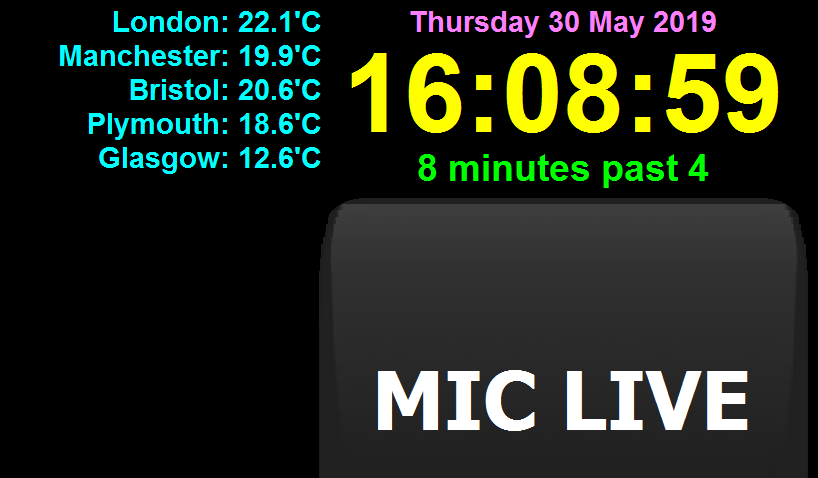
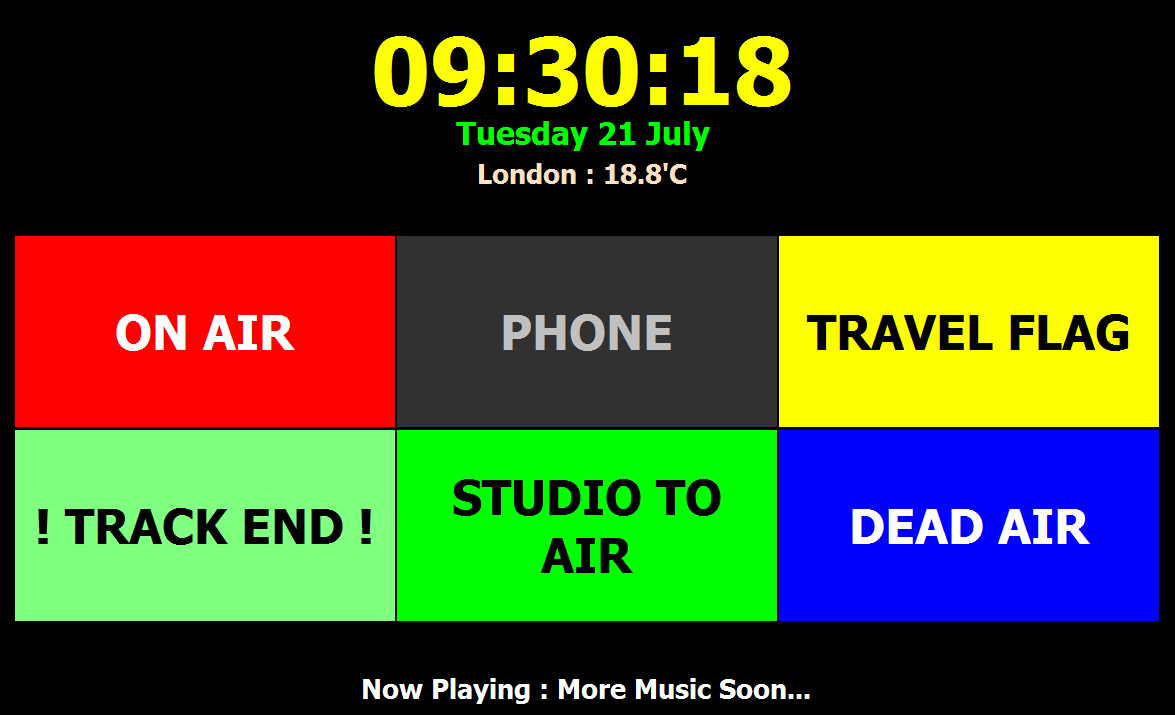
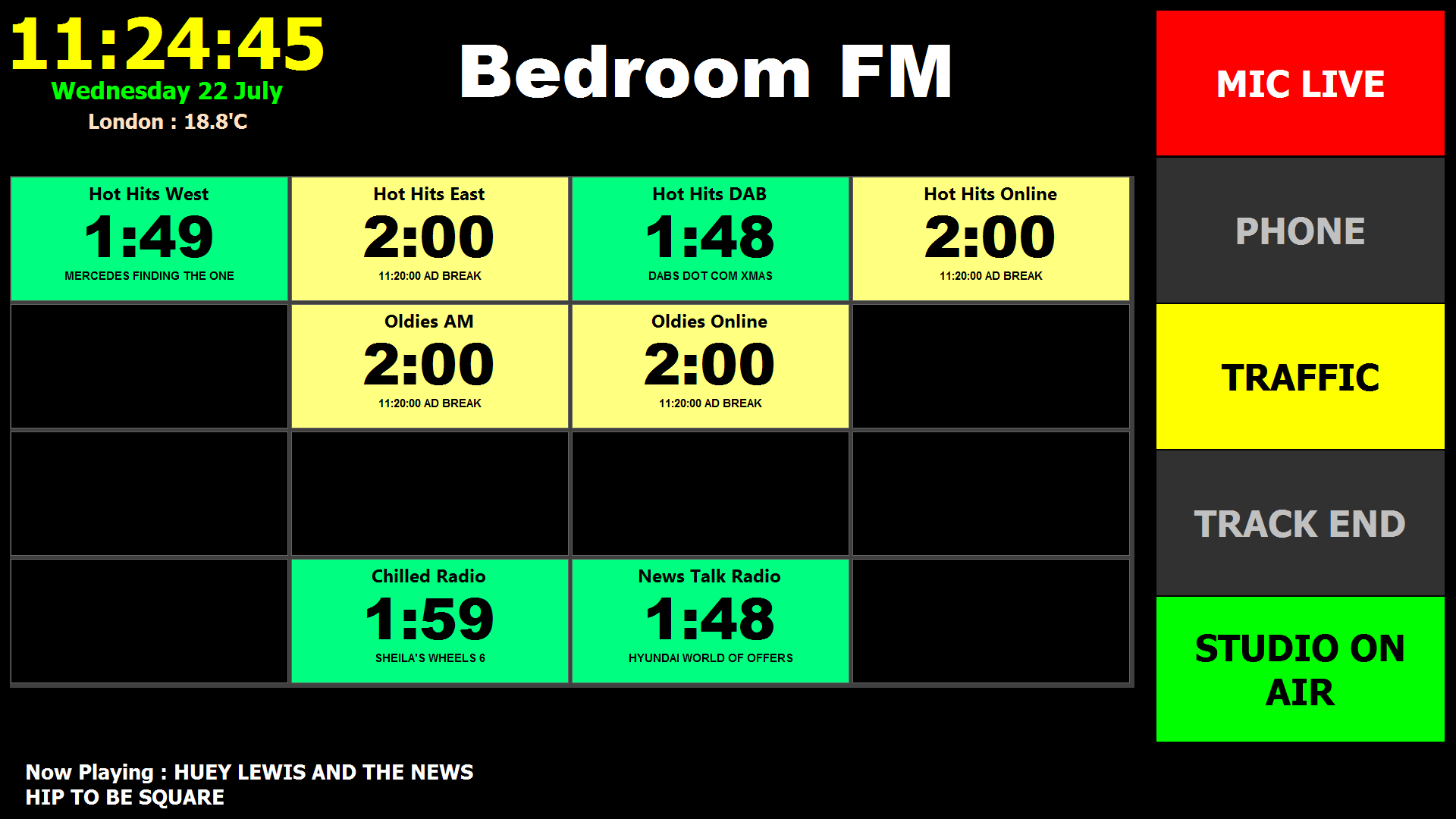
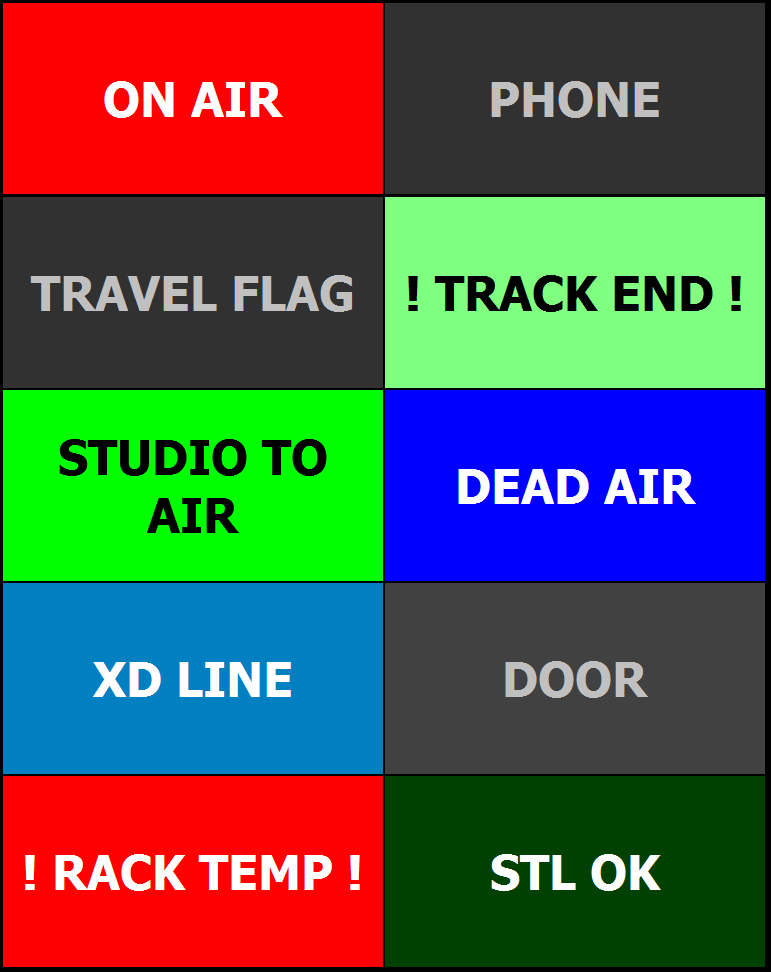
You'll see these at the studios of
Capital/Virgin...etc. They are basically a wooden mount with a radio-clock and
several lamps - These show Mic Live, Phone, Alert and other messages that are
useful to the presenters. I made a small one of these about a year ago, and have
decided to make a larger (more sexy!) one... It's made from 18mm MDF which you
can pick up at any decent DIY store, some sticky-back plastic (aka: Fablon) -
I'd suggest you get the Beech effect as the Tartan pattern doesn't
really go well in a radio studio.
The circular hole is made according to the size
of your radio clock. I suggest the 300mm
TimeGuard from Maplins, it's about £24 - but worth it. Very reliable. I
don't recommend the Canford Audio ones as I've seen 2 that have gone a bit loopy
- That's not to say they are bobbins, just that I prefer the TimeGuard.
Here is a quick drawing of the unit

Now we come to the lights and switching circuitry
- This is best achieved by mounting it in a 1U rack-case. If you are using a
broadcast mixer, it should have an "on-air singalling" output (a
latching contact when the mic is on). The Track End, Studio On and
Phone lights are a little more complex. The "Track End" light is
sourced from the EOM pins of your CD/MD machines (Denon DN machines are
compatible). This provides a visual warning that the song/item is about to
finish.
This works in the same way as your mic-live
light. A closing contact will drive a relay, this switches over the mains to the
lamp. Depending on how you configure the logic, the "Track End" light
can remain static, or flash with the CD/MD machines. If the phone channel has a remote
for the "on" LED, you can wire that up to the switching circuit.
txIP - Broadcast audio/data Link
txIP is a software solution for sending high-quality low-latency audio (and
signalling data) over a standard ethernet LAN. Typically, a delay between
source and destination on a 256k 44.1KHz MP3 feed is just 1.5 seconds, about the
same as your typical satellite link. Although this may vary due to network
traffic - there is an internet clock built into the software which will
communicate with each listener (oh yes, txIP can multicast) and display a
real-time delay indicator - txIP always shows the delay on-screen down to .1 of a second.
screenshots coming soon
Here's a few of the it's features:
- MP3/PCM Audio Distribution - send
your audio using standard MP3 compression (32-320k/bit) or linear PCM.
Sample rates between 11025 - 48000KHz are supported. Set the link as
one-way or bi-directional. Twin mono feeds are available - Why waste
a stereo sound card sending 1 mono feed ? You can have 2 individual
mono links per licence - Great for a station with 2 studios who want to
have their own link but can't afford 2 copies of the software.
- Data Stream - send individual
blocks of up to 255 characters for remote control of playout/switching
systems. This data appears at your serial port. If it detects
a command-line (such as
C:\folder\program.exe), it can run an external application or script -
Such as "resume automation". Data is sync'd with the audio for
seamless junctioning into and out of network feeds.
- Re-Connect On Failure - if there's
a network failure, txIP will attempt to re-connect and/or re-route to an
alternate IP. It can also ping the original source and, subject to a
successful test, re-connect to your default connection. If required,
a local audio file can be played as a backup. E-Mail alerts can be
sent, too!
- Scheduled Connections - txIP can
automatically connect to various destinations at varying bit-rates.
Ideal for automated link-ups, network feeds, scheduled feeds
from a remote-studio or a low-quality cue-feed for an OB. Sound
settings and RS232 control can be unique to each connection - or just use
the global settings.
- Real-time Delay Indicator
The stream delay (usually 1-2 seconds) is constantly shown on the
receivers (and the transmitter on a direct link). This should help
with those "clock starts".
- Interfacing To CTA Hardware - As
well as the RS232 output, txIP can output logic levels to the parallel
port to alert you to various problems (such as network failure, dead air
etc).
Purchasing Information
txIP is available on a "per-machine" basis. 1 licence works on the machine
it's been assigned to (so you can have several instances running on a main
server for routing of multiple feeds). A discount is available for 3 or
more licences.
Visual
Basic Examples
I am no expert programmer, so some of this code may seen rather simple -
However, it's great to learn from if you're just starting out in Visual Basic or
need quick and simple way of doing something, ahem...simple. Here is some
example code that I have used in my software.
Button Captions
Button captions/text can be changed simply by using an
If code. If you wish to have a button
change it's caption each time you press it - This is how to do it:
Private Sub Button_Click()
If Button.Caption = "BUTTON OFF"
Then
Button.Caption = "BUTTON ON"
Else
Button.Caption = "BUTTON OFF"
End If
End Sub |
This very
simple code with swap the button's text each time you click it. You
can also add other properties like backcolour (remember to set the
command button to "graphical"). |
Clock Display and "do something" At A
Given Time
This is a very simple bit of code to make your software do something at
a given time. Simply place a Timer onto your form, set it's Interval
to 100 (100ms) and make sure it's enabled. Then place a Text Label
onto your form, sizing and styling to taste - This will be your clock
display. Then double-click the Timer and place use this code:
Private Sub Timer1_Timer()
Clock.Caption = Time
If Clock.Caption = "00:59:54" Then
End
Else
End If
|
This code
will create a clock, and exit at the given time.
You do not have to have the clock
visible, just as long as it's somewhere on the form. |
| Say you
wanted to play a sound (wake-up call) at 7am:
Private Sub
Timer1_Timer()
Clock.Caption = Time
If Clock.Caption = "07:00:00" Then
mci "play snd1 from 0"
Else
End If
End Sub |
For this
example to work, you will need to make use of my
Define A WAV File To Be Played Using
MCI code.
If you wanted the code to do
something else at all other times except 7am, simply insert your
"else" code between the Else and
End If. |
Add FileList Items To A ListBox
Here is how you can add files from a FileList into a ListBox:
Private Sub Add_Click()
Form2.List1.AddItem File1.FileName
End Sub
|
You will
need a CommandButton called Add, a FileListBox called File1, and
another Form called Form2. This assumes that you are copying a File
from one form to another - If not, simply remove "Form2."
from the code. |
Add Text To A ListBox
This is how to easily add your own text to a ListBox:
Private Sub Insert_Click()
List1.AddItem Note.Text
End Sub |
You will
need a CommandButton called Insert, a TextBox called Note. Whatever
you type into the TextBox, it will be added to the FileList. |
Define A WAV File To Be Played Using MCI
Private Sub Form_Load()
Dim Sound1 As Boolean
Sound1 = LoadMedia("c:\sounds\mysound.wav", "snd1", "waveaudio")
cmdSound1.Enabled = Sound1
End Sub
You could also obtain the sound file from a
listbox, define it as a string and call it that way - entirely your choice,
but this is a basic "one-off" approach.
To play
the sound, simply use this line of code:
mci "play snd1 from 0" |
For
example, via a command-button:
Private
Sub cmdSound1_Click()
mci "play snd1 from 0"
End Sub |
FileListBox Extensions
This very simple bit of code will allow you to view files based upon the
extension that you enter into a text-box:
Private Sub Refresh_Click()
File1.Pattern = Extension.Text
End Sub
If you need to have a Dir/FolderList
in order to navigate around folders, include this code as well:
Private Sub
Dir1_Change()
File1.Path = Dir1.Path
End Sub |
To make
this example work, you will need a FileListBox called File1, a TextBox
called Extension, and a CommandButton called Refresh. |
Form Sizing
If you wish to have some configuration settings on a Form, but do not
want to go to the trouble of using another form - You can simply make your
main Form bigger, place your buttons/settings on it and then set the
height/width parameters manually:
Private Sub Form_Load
Form.Height = 500
End Sub
|
|
Serial Port Control
This code allows you to send your DTR/RTS port "high" on your COM port:
Private Sub PTT_Click()
If PTT.Caption = "PTT" Then
PTT.Caption = "RX"
Serial.DTREnable = True
Serial.PortOpen = True
Else
PTT.Caption = "PTT"
Serial.DTREnable = False
Serial.PortOpen = False
End If
End Sub |
Place the
MSComm control onto your Form, rename it to Serial. Place a
CommandButton called PTT and set it's caption to "PTT".
Run the form - when you click the PTT
button, the serial port will go high. Click it again, it'll return to
it's low state.
Useful for placing a radio into
transmit as the port emits a small voltage (good for opto-isolators
and transistors. |
Simple Counter
This code will count upwards:
| To start
the counter:
Private Sub
Count_Click()
Timer1.Enabled = True
Duration.Caption = Duration.Caption + 1
End Sub
To stop the counter
Private Sub
Stop_Click()
Timer1.Enabled = False
End Sub
To reset the counter
Private Sub
Reset_Click()
Timer1.Enabled = False
Duration.Caption = "1"
End Sub |
|