Since its inception, MyLibrary has existed as a simple file/folder-opening tool to process audio (mainly music) for library and playout purposes. The most obvious feature not included was a Database to import tracks and search with - now, from v4.0, MyLibrary includes a database which can be imported to from the current list and updated each time you save an item in the SongCard and/or use Mass Change Fields.
The Database also works with my DAC Cartwall software making it easy to search for items for your "instant" Cartwall - MyLibrary supports ALL fields within the database/tag-data but DAC supports only those necessary for its operation.
The Database' purpose is to store your audio information and for you to either search/sort for tagging purposes or just to have an easy way to know what items you have in your collection. You can import files with little-to-no "extra" data, and work on adding Intros, Hooks, Years etc later on. Cart Number are not required and may also be added later.
The Bleedin' Obvious: It is easy to get into a pickle with your data, especially if you run a search and then update the JMD files from the resulting search. If the JMDs had newer information in them, it'll be lost. With a variety of read/write methods, you have the option of using the Database a primary source of information, updating to JMD Files as a backup, or vice-versa. You may prefer to work with folders/flat-files and simply use the database as a "search" facility - with the SongCard set to read from JMD.
If you regularly move files from a temporary "ripping" folder to their permanent home, the best way to keep the Database is to use MyLibrary to "move" the files as the Database will be updated during the process. If you move the files using Windows Explorer, the Missing File Wizard will highlight the files - do NOT remove them! Use the "Find New Files" to scan your Watch Folder/s so that the matching FileNames can be used to update the Database with their new folder location.
In short, so long as you move/rename/delete from within MyLibrary, the Database should not get out-of-sync with "reality"!
If you make unwanted changes to the Database (ie: via Mass Change) but still have "good" JMD files, you can simply re-load the audio via folder/M3U or drag'n'drop using JMD and re-import into the Database - this will update matching filenames with the JMD information.
Loading from a Folder Preset/Watch Folders in the top-bar (or menu) will use the current "Tag Read" format rather than the Database!
Configuration
In the Config screen , there is an option to enable the database.
With this option enabled, the toolbar becomes available alllowing you to switch
between "search" and the normal "Folder Presets".
When the database file is enabled, the Mass Change Fields will also
insert/update changes, but this can be unchecked "per operation" if
needed. Remember that Mass Changes only apply to the current list view (and
database, if ticked) so JMD files are left intact until you explicitly save them (CTRL-J).
You then need to decide if you want the database to update each time you save the SongCard.
When the database is enabled, all "Special Action" exports that rely on ALL tracks being loaded in the list will take their information from the Database, eg: Artist List, Albums/Genders/Years etc - meaning that you can just right-clik the "Special Action" to run it and not have to load all the tracks concerned.
When enabled, the following menus become available:
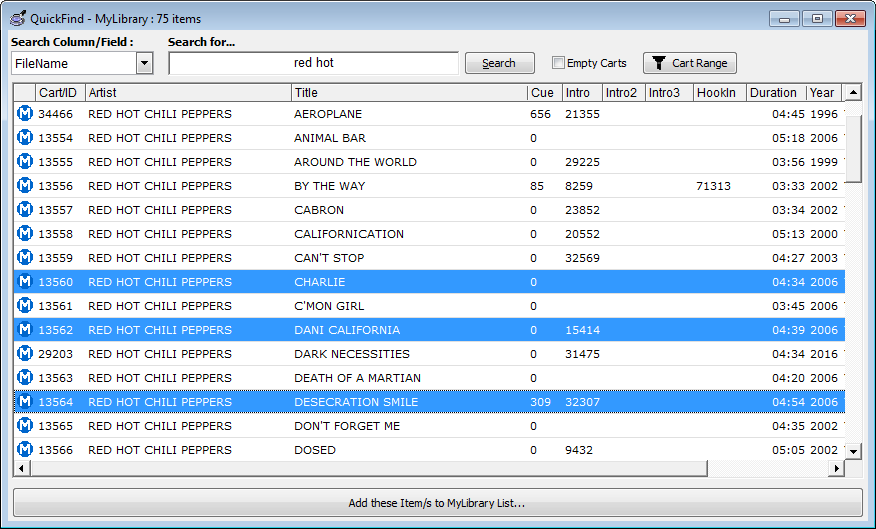
Show QuickFind Window - opens a new window with a search box and list allowing you to make Database searches outside of the main window and, optionally, add them to the current list. This could be useful when building a particular "playlist" of audio files or just checking content without upsetting the main list contents.
Multi-select is possible, and you can PFL the selected track using the playback controls on the main screen. You cannot load the SongCard from this list, it's just for looking, listening and adding to the main window list.
Import / Missing File Wizard - opens a new window that allows you to select a folder or Watch Folder Preset to scan for new files. You can also type into the folder box for loading a folder that's not in your presets. A missing-file check of approx 25,000 database records takes about 2-seconds.
New files can then be added to the main window list and imported, tagged etc.
Import/Update Selected Item/s to the Database - a right-click from the main list view, this imports (or updates) the selected items in the main window list. Any matching path+filename is automatically updated and new items are imported. A summary message is displayed at the end of the routine telling you how many new+updated items there were. To import items, you can load a list of audio in the normal way (per folder, drag/drop, M3U etc), select them, right-click and use the "Import" menu (bottom of the list) or you can load the Import Wizard to check Folder Presets and Watch Folders, plus report on any missing items.
A separate checkbox for the SongCard allows it to also insert/update the database (recommended).
The SongCard can be configured to load the database contents, overriding the current "tag format", if selected in the Configuration.
- Cart Numbers are NOT required and may be (bulk) added later
- Saving the SongCard can update the database with the latest changes
- Right-click Import into Database option available for currently selected list items
If you "Move" a file using MyLibrary, the database, if enabled, automatically updates with the new location.
The Genre/Style tree on the left of the main screen will perform a database lookup if the "Database Search" fields are visible (this switches with the Folder preset dropdown). Therefore, you could use the database to search for a specific text-match in any column/field, and then use the Genre/Style tree to "filter" those results further. Remember that by holding CTRL when selecting a Genre/Style will invert the filter, ie: NOT matching this selection .
Clicking the top-level "SONG" field in the tree may result in a large search result!
Any missing files found during a database search will have their file-icon show as a red cross.