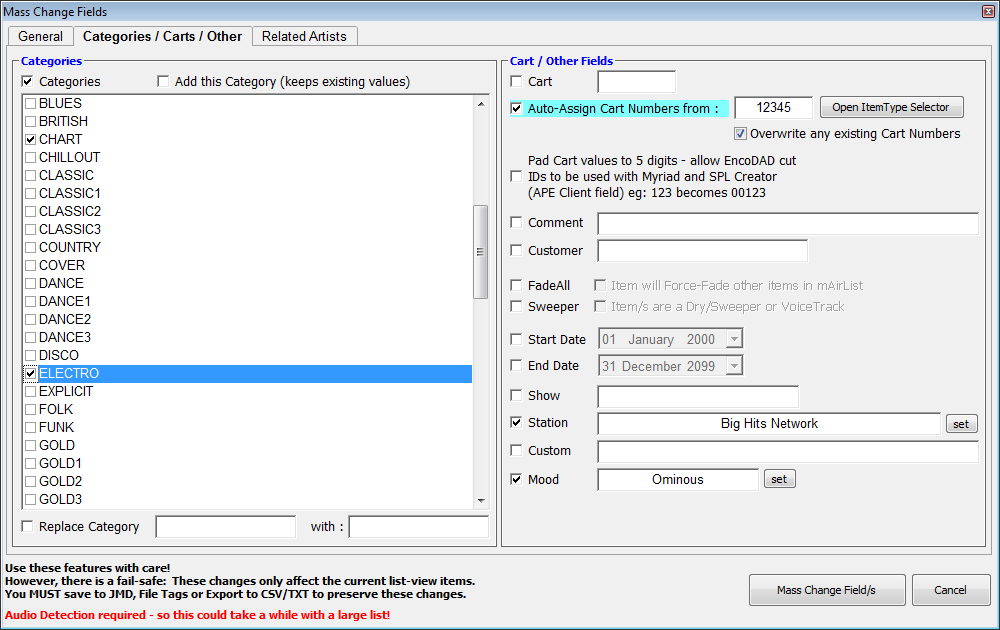
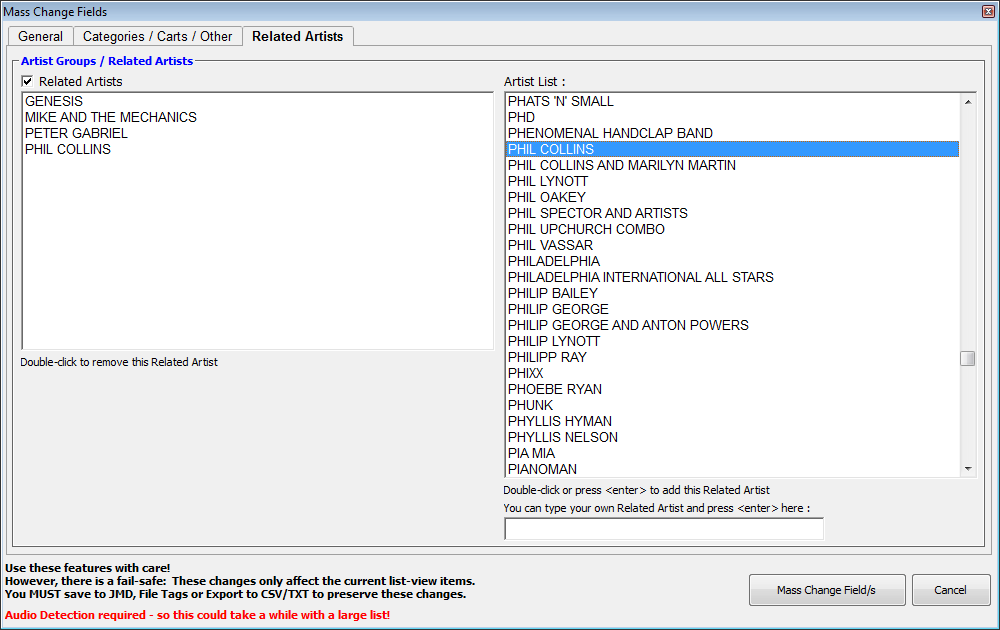
You can mass-change a variety of fields in a list of loaded tracks - this is useful if you have imported an album that has identical attributes (like Year, Genre/Style etc) that you wish to apply to all tracks. The Mass Change window can be called from a right-click inside the main file list or by selecting multiple files (using CTRL or SHIFT) and pressing CTRL-R.
Since v4.0, this screen has been overhauled and made a little "cleaner" - with some additional functions added, including a final "Are You Sure?" confirmation!
When the database file is enabled, the Mass Change Fields will also insert/update changes, but this can be unchecked "per operation" if needed.
Tip : You can mass-change properties of the selected items without making permanent changes using this window - if you need to re-assign Cart Numbers, Start/End Dates etc - you can do this without losing your original data. If you want to keep the new data, remember to save/export (APE, CartChunk, ID3, JMD etc).
Unless you are using the "Rename File/JMD" option, all changes made here are "non destructive" until you save/export to a file/tag format. This and other options that would cause significant changes (such as cue-point reset) are highlighted when selected so you are aware of a major change pending.
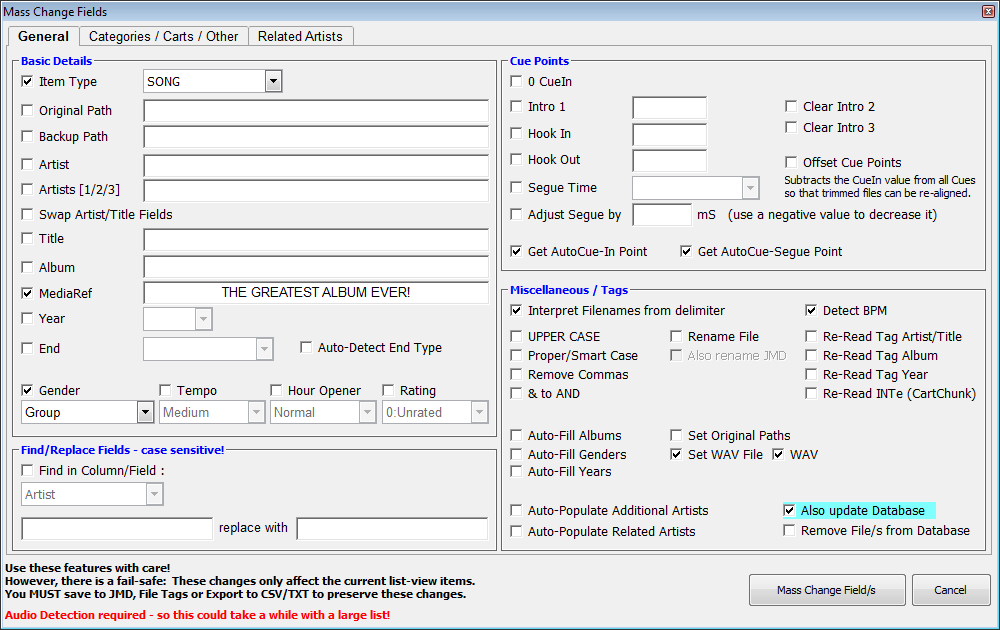
As you can see from the screenshot - a wide range of fields can be manipulated and this makes MyLibrary quite a powerful tool when you need to set specific details on a number of tracks. Many of these options should be self-explanatory, but a few are explained here:
The Album and MediaRef fields will populate, when the their dropdown button is clicked, in Database Mode to allow you to pick from existing entries (to help avoid typos).
Also update Database : This will update the Database entry with the information in the main list view
Remove from Database : This will remove the select item/s from the MyLibrary Database but not delete the audio file.
Auto-Detect End Type : Will look at items (that contain a valid Segue point) and set as End or Fade if there is more than 8 seconds between the Segue and the end of file, eg: <8sec=End , >8sec=Fade ... Accurate 99% of the time! You can change the default 8-second value in the "Audio" tab of the main Configuration screen.
Intro Time : Sets the Intro Point of all selected
files to the value (milliseconds) in this textbox
Segue Time :
Sets the Segue Point of all
selected files to the value (in milliseconds) in this dropdown box (some
popular values are provided)
Interpret Filenames from delimiter : attempts to populate the Artist+Title fields from the filename using the ARTIST - TITLE.ext principle.
Proper/Smart Case : Turns ABBA (or abba) into Abba, and "LET tHe MuSic pLay" into "Let The Music Play".
Get BPMs : Scans the file and assigns it a BPM (Beats per Minute) value.
Get AutoCue-In Point : Scans each file and places the CueIn marker where the audio threshold is met.
Get AutoCue-Segue Point : Scans each file, gets the duration and populates the Segue and Duration fields with these values. Useful if you need to import tracks into a playout system with an "end-point" segue marker to ensure smooth automation without manually marking them.
Re-Read Tag (Artist/Title, Album, Year) : These 3 options will re-scan the file for AUDIO, FLAC, ID3 and OGG, tags (Artist+Title, Album+Track, Year)
Re-Read INTe (CartChunk) : Checks the "PostTimer" fields for an INTe value and applies it to the "Intro" field.
Auto-Find Additional Artists : Auto-populates the Artists field with matching results. The routine looks for the following naming conventions:
Artist1,
Artist2
Artist1 ft Artist2
Artist1 ft. Artist2
Artist1
featuring Artist2
Artist1
featuring. Artist2
Artist1 feat Artist2
Artist1 feat. Artist2
Artist1 & Artist2
Artist1
and Artist2
Artist1 with
Artist2
Artist1 aka Artist2
Artist1 x Artist2
Artist1 X Artist2
This also allows for
scenarios like: Artist1, Artist2 vs Artist3 with Artist4 feat. Artist5 and Artist6 - Song
Title
The lowercase and is interpreted as an Artist delimeter, but AND is not. eg: YEARS AND YEARS is a single artist, but YEARS and YEARS would be treated (and split) as separate artists. This multiple-artists feature can be useful when you export to a music scheduler via CSV which may require separate artists for rotation/rule purposes.
The Related Artists routine will really benefit from you using this system of naming as it can apply complex relationships like a song by MICK JAGGER and ROY ORBISON. With the Artists field showing MICK JAGGER/ROY ORBISON, the routine will check *both* Artists for a relationship, including ROLLING STONES, TRAVELING WILBURYS etc.
If the routine does not find any matching Artists using the above criteria, the Artists field is left blank.
Auto-Fill Albums , Genders , Years : Reads the Albums.ini , Genders..ini , Years.ini files and fills in missing Albums, Genders or Years to matching Artists/Titles. This means that you can share your Years.ini with somebody and, as long as their Artist+Titles match yours - can fill-in the "Years" field in their library. Same for Albums+Genders.
A sample Genders.ini file is provided offering ~750 80s Artists/Groups so load any song from that era and try it out - The Artist field must match exactly, but should work 9 times out of 10 unless the name is rather odd or contains punctuation/symbols. YMMV.
The checkbox Auto-Populate Related Artists will do this for you on the selected item/s using the Master Artist List (if you've created it). This would look at each item, check for a matching Artist in the master list and apply any related artists.
Categories / Carts / Other
You can (de)assign Categories as well as set Start/End dates.